

Google setup
Connect your Gmail or Google Workspace inbox using an app password or OAuth 2.0.App password
An app password is the quickest way to connect Gmail. It needs no Google Cloud Console setup. Your Google account must have 2-Step Verification enabled for this option to be available.1
Generate an app password
Visit myaccount.google.com/apppasswords, name the app (e.g.
Libredesk), and copy the generated 16-character password.2
Add inbox in Libredesk
Go to Admin → Inboxes → New inbox → Other provider and use these settings:IMAP
SMTP
3
Save the inbox, then wait for the first scan
Click Save. Libredesk does not check the mailbox immediately. It checks on the Scan interval set in the same form, which is
5m by default.So: send a test email to the address, wait 5 minutes, then look in Conversations.OAuth
Prerequisites
- A Google Cloud Console project
- OAuth 2.0 credentials (Client ID & Client Secret)
Required OAuth scopes
Your Google OAuth app needs these scopes:Configuration steps
1
Get callback URL from Libredesk
In Libredesk, go to Admin → Inboxes → New inbox → Google. A dialog opens with the Callback URL. Copy it.
2
Create a Google Cloud project
Go to the Google Cloud Console and create a new project or select an existing one.
3
Enable Gmail API
In your project, navigate to APIs & Services → Library and enable the Gmail API.
4
Configure OAuth consent screen
Set up the OAuth consent screen with the required scopes listed above.
5
Create OAuth credentials
Go to APIs & Services → Credentials and click Create Credentials → OAuth client ID:
- Application type: Web application
- Add the callback URL from step 1 to Authorized redirect URIs
- Note down the Client ID and Client Secret
6
Complete setup in Libredesk
Back in the Libredesk dialog, enter the Client ID and Client Secret, then click Authorize. You’ll be redirected to Google’s consent screen to grant permissions.
7
Save the inbox, then wait for the first scan
Click Save. Libredesk does not check the mailbox immediately. It checks on the Scan interval set in the same form, which is
5m by default.So: send a test email to the address, wait 5 minutes, then look in Conversations.Microsoft setup
Connect your Outlook or Microsoft 365 inbox using OAuth 2.0.Prerequisites
- An Azure Active Directory (Azure AD) app registration
- OAuth 2.0 credentials (Client ID & Client Secret)
Required API permissions
Add the following Microsoft Graph delegated permissions in Azure Portal: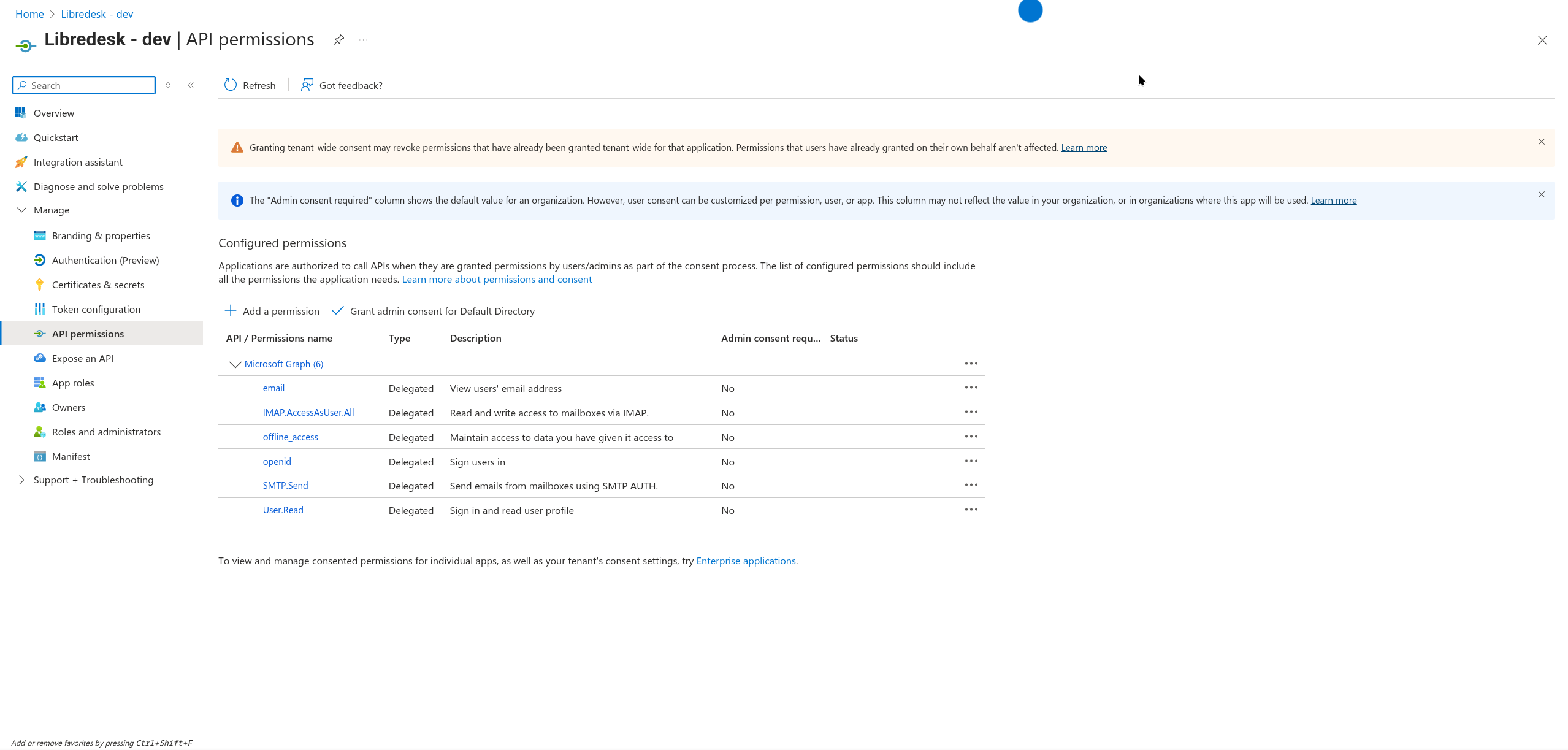
Configuration steps
1
Get callback URL from Libredesk
In Libredesk, go to Admin → Inboxes → New inbox → Microsoft. A dialog opens with the Callback URL. Copy it.
2
Register an app in Azure Portal
Go to the Azure Portal → Azure Active Directory → App registrations → New registration:
- Enter a name for your application
- Select the appropriate account type (single tenant or multi-tenant)
- Add the callback URL from step 1 as the Redirect URI
3
Configure API permissions
In your app registration, go to API permissions → Add a permission → Microsoft Graph:
- Add all the delegated permissions shown in the table above
- Click Grant admin consent for Default Directory
4
Create client secret
Go to Certificates & secrets → New client secret:
- Add a description and expiration period
- Copy the secret value immediately (it won’t be shown again)
5
Note your credentials
From the Overview page, copy:
- Application (client) ID
- Directory (tenant) ID (if using single-tenant)
6
Complete setup in Libredesk
Back in the Libredesk dialog, enter the Client ID, Client Secret, and Tenant ID (optional), then click Authorize. You’ll be redirected to Microsoft’s consent screen to grant permissions.
7
Save the inbox, then wait for the first scan
Click Save. Libredesk does not check the mailbox immediately. It checks on the Scan interval set in the same form, which is
5m by default.So: send a test email to the address, wait 5 minutes, then look in Conversations.Manual IMAP/SMTP setup
Use manual IMAP/SMTP for self-hosted mail servers and for providers that don’t support OAuth. For Gmail, use the app password option under Google setup instead.Configuration steps
1
Add inbox in Libredesk
Navigate to Admin → Inboxes → New inbox → Other provider, configure IMAP and SMTP settings, then click Save.
2
Wait for the first scan
Libredesk does not check the mailbox immediately. It checks on the Scan interval set in the same form, which is
5m by default.So: send a test email to the address, wait 5 minutes, then look in Conversations.